
Import/Export Control Panel#
The Import/Export control panel allows administrators to export site content into a file and import content from a previously exported archive.
This feature is useful for migrating content between environments (development, staging, production), creating backups, restoring content, and moving content between Plone sites.
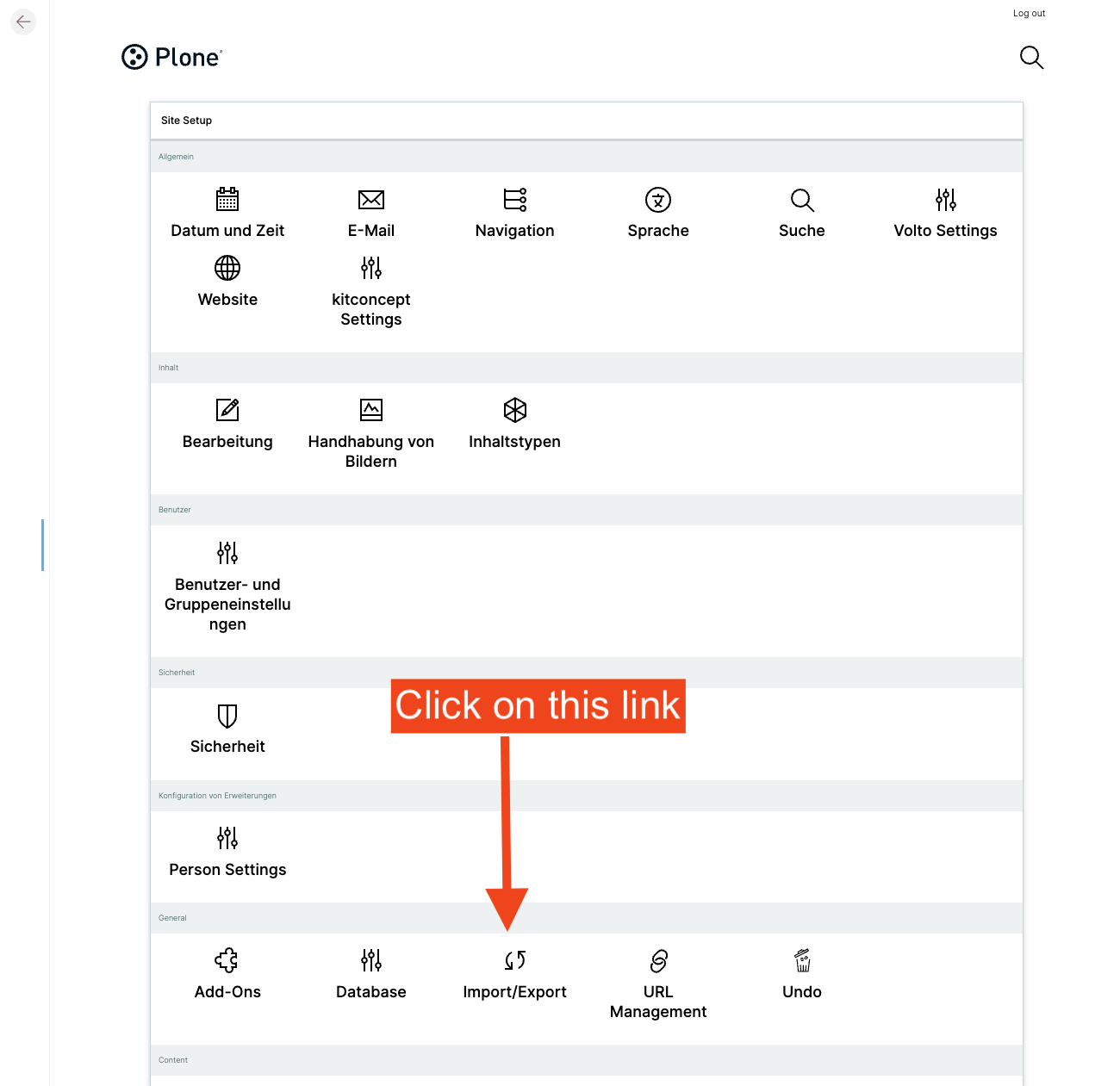
You can access this control panel at /controlpanel/import-export or via Site Setup → Import/Export.
Export Content#
The export feature creates a .zip archive containing the site content.
Steps#
Navigate to Site Setup(/controlpanel) → Import/Export.
Click the Export Site button.
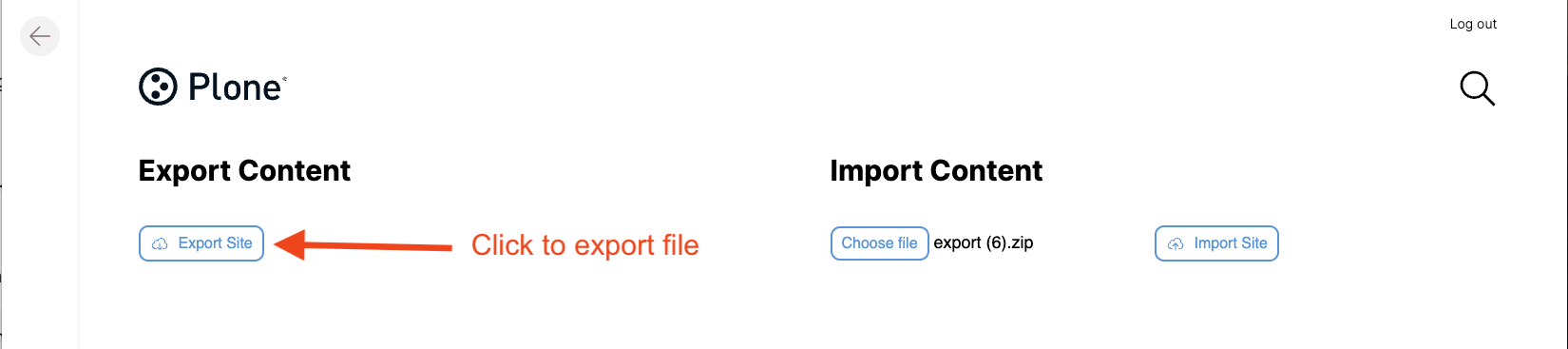
Wait for the export to complete.
Your browser will automatically download a file named
export.zip.
Note
The export process may take time depending on the size of your site.
Import Content#
The import feature restores content from a previously exported archive.
Steps#
Navigate to Site Setup(/controlpanel) → Import/Export.
Click the file selection input.
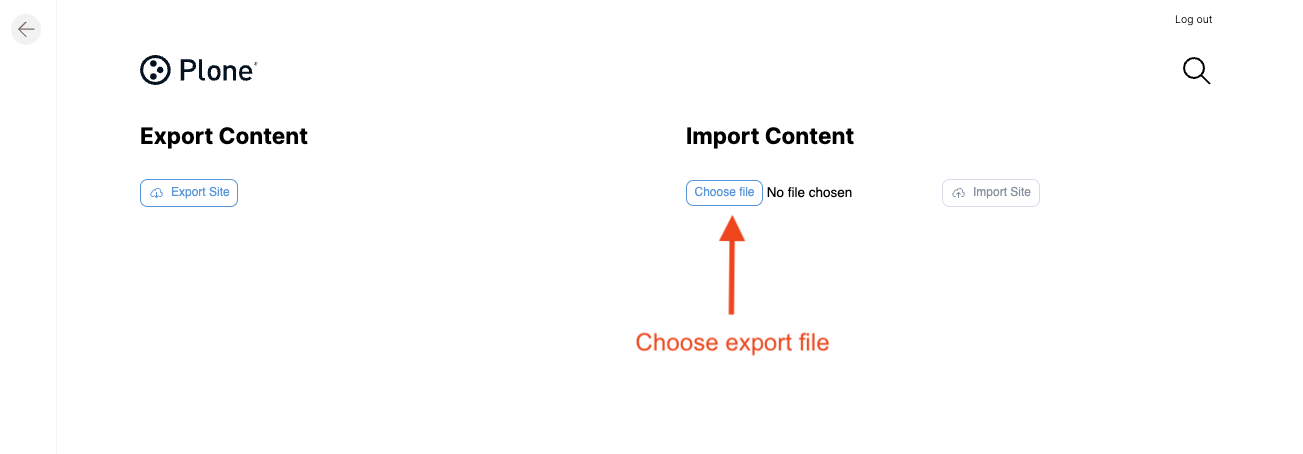
Select a
.zipfile previously exported from a Plone site.Click the Import Site button.
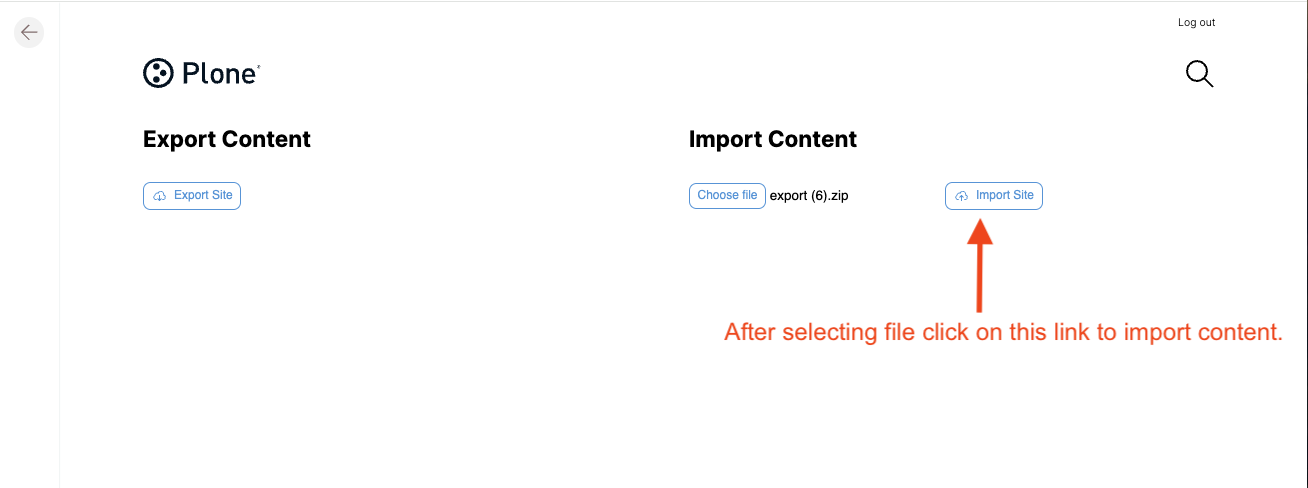
Wait for the import to complete.
Note
Only valid export archives generated by Plone should be used. Importing invalid files may cause errors or failure.
Permissions#
This control panel requires Site Administrator permissions and access to the Plone control panel.
User Feedback#
The interface provides real-time feedback during operations.
Export status messages:
Exporting…
Export successful (Toast)
Error message if export fails
Import status messages:
Importing…
Import successful
Error message if import fails (Toast)
Warning if no file is selected